
Lazy Loading Images: The One-Line Fix That Backfires on LCP
Adding loading="lazy" to every image on a page looks like an easy performance win. In practice, applying it uniformly - including to hero banners and other above-the-fold visuals - usually makes the page feel slower.
Lazy-loading a hero image adds an artificial delay to the Largest Contentful Paint (LCP), which is the Core Web Vital used to rank the page. The attribute is one line of HTML; getting it right means deciding which images should not have it.
How Does Lazy Loading Work?
Browsers typically try to download every image on a page immediately, even if those files are buried thousands of pixels below the fold where users might never see them. This behavior wastes bandwidth and slows down the initial experience. Lazy loading solves this by instructing the browser to pause and only fetch an image once a person actually starts scrolling toward it.
The native approach is fairly simple:
<img src="photo.webp" loading="lazy" alt="A photo nobody's scrolled to yet">
Because this feature is built into all modern browsers, it manages the heavy lifting without extra scripts or complex steps. The browser simply tracks the scroll position and triggers the download at the right moment. This shift provides a massive boost to page speed by skipping dozens of hidden images during the first load, which can cut the initial page size by more than half.
Lazy Loading the Hero Image
A common error in web optimization is applying loading="lazy" to every image on a page, including the one that matters most. Your Largest Contentful Paint (LCP) is almost always a visual element like a hero banner or a primary product photo. Because Google uses LCP as a core metric to determine search rankings, keeping this load time under 2.5 seconds is critical. Anything over four seconds is flagged as poor performance.
When you lazy load a hero image, you essentially tell the browser to deprioritize the most important content. Instead of fetching the image immediately, the browser waits to calculate the page layout and confirm the image is visible before starting the download. This creates an artificial delay for the first thing a visitor is supposed to see.
Modern browsers use a preload scanner to find images in your HTML and start fetching them before the CSS is even fully processed. Using loading="lazy" on a hero image disables this scanner, throwing away one of the most effective built-in performance tools. This mistake consistently adds between 300 and 1,500 milliseconds to LCP times. On a typical e-commerce site, removing that single attribute from the hero image can cut load times nearly in half.
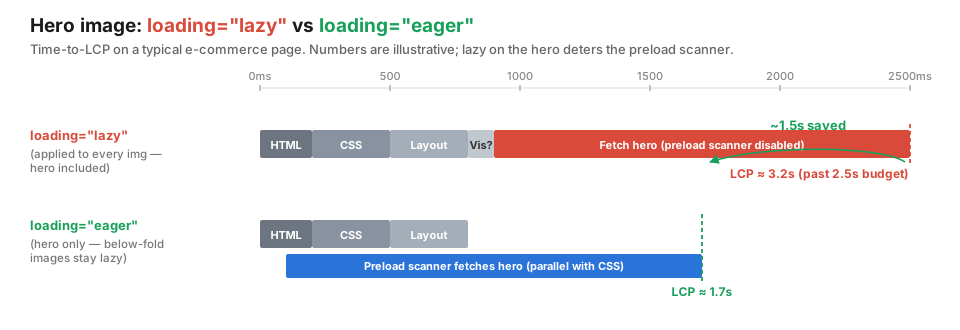
The Right Way: Eager Above, Lazy Below
The strategy is simple: images above the fold should load eagerly, while everything below the fold should load lazily.
Think of eager loading as a priority pass. It tells the browser to fetch an image the moment the code is read so the visual is ready as soon as the page appears. Lazy loading does the opposite by keeping images on standby, only fetching them if a user actually scrolls down. This keeps the initial load light and saves data for everyone.
Browsers load images eagerly by default, but writing it out explicitly shows that the timing was a deliberate choice. It confirms the image is a priority rather than something left to chance. The only challenge is deciding where the fold sits given the variety of screen sizes.
☞ Rule of Thumb: To treat anything visible on a mobile screen without scrolling as being above the fold. When in doubt, lean toward eager loading. The tiny cost of fetching one extra image early is a small price to pay compared to the speed penalty of making your hero image wait.
The Fetchpriority Complement
Since eager loading only tells the browser when to start, you still need a way to tell it how to prioritize that request against everything else. Adding fetchpriority="high" solves this by ensuring your hero image doesn't get stuck in a bottleneck of fonts, scripts, and stylesheets.
<img src="hero.webp" loading="eager" fetchpriority="high" alt="Hero banner">
This attribute tells the browser to move the image to the front of the line. Browsers constantly juggle dozens of requests at once - including stylesheets, fonts, and scripts - and this tag ensures your most important visual doesn't get stuck behind less critical files.
Why Priority Matters:
-
Shaving Milliseconds: Combining
loading="eager"withfetchpriority="high"typically cuts another 200 to 500ms off your load time compared to eager loading alone. -
Smart Resource Management: You can use
fetchpriority="low"for less important items above the fold, such as small icons or decorative background shapes. - Focused Bandwidth: Every bit of data you redirect toward the hero image helps the page feel finished much faster.
WordPress and Plugin Conflicts
WordPress deserves a specific mention because it is where lazy loading implementations often collide. Since version 5.5, the platform has applied native lazy loading by default. While newer versions are smart enough to skip the first content image, popular optimization plugins frequently override this logic. It is common to find sites running three competing implementations including WordPress core, a caching plugin, and a dedicated image optimizer.
If you are on WordPress, it is worth checking your page source. If your hero image contains loading="lazy", you can usually resolve the issue by configuring your plugin's exclusion list or adding a manual filter to your functions.php file. Be especially wary of plugins that use JavaScript to swap the src attribute for data-src because this breaks the browser's preload scanner and often negates the performance benefits of lazy loading.
Eager-load what is visible and lazy-load everything else. Set your LCP image to loading="eager" with fetchpriority="high". For everything below the fold, use loading="lazy" and always define width and height to prevent layout shifts. On WordPress, check that plugins aren't overriding this behavior.