
Your Images Are Probably the Slowest Thing on Your Website
Developers usually look at code first when a page feels slow, but the bottleneck is more often in the media library. A homepage that takes over four seconds to load frequently has perfectly fine HTML, CSS, and JavaScript and a 3-4 MB image payload doing most of the damage.
HTTP Archive data puts images at roughly 40-50% of median page weight and higher on image-heavy verticals like e-commerce or real estate. Most of these assets are 2 to 5 times larger than they need to be - not because the quality is justified, but because nothing resized or recompressed them on the way in.
The Weight Breakdown
The median webpage in 2025 weighs about 2.3 MB on desktop and 2.1 MB on mobile. Images usually take up between 900 KB and 1.2 MB of that total. That means images alone account for over half of what your visitors actually have to download.
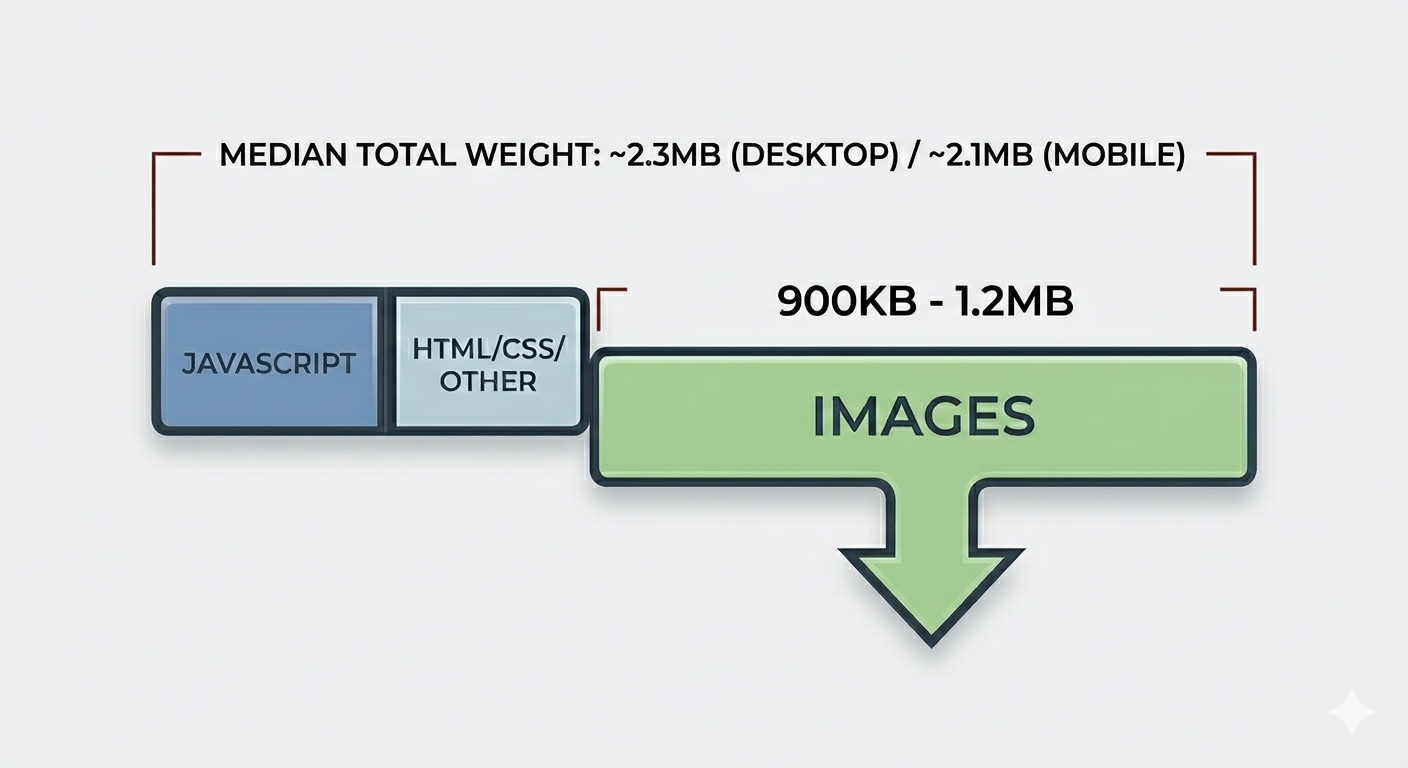
JavaScript takes most of the blame in developer circles, but it's used primarily for parsing, compiling, executing, meaning it primarily affects the CPU. Images hit the network, consuming bandwidth, delaying renders, and on mobile connections, can turn a two-second page load into eight seconds. A team might not realize that a single 4000px image is responsible for most of the slowdown on their homepage.
Why Google Cares About Your Image Sizes
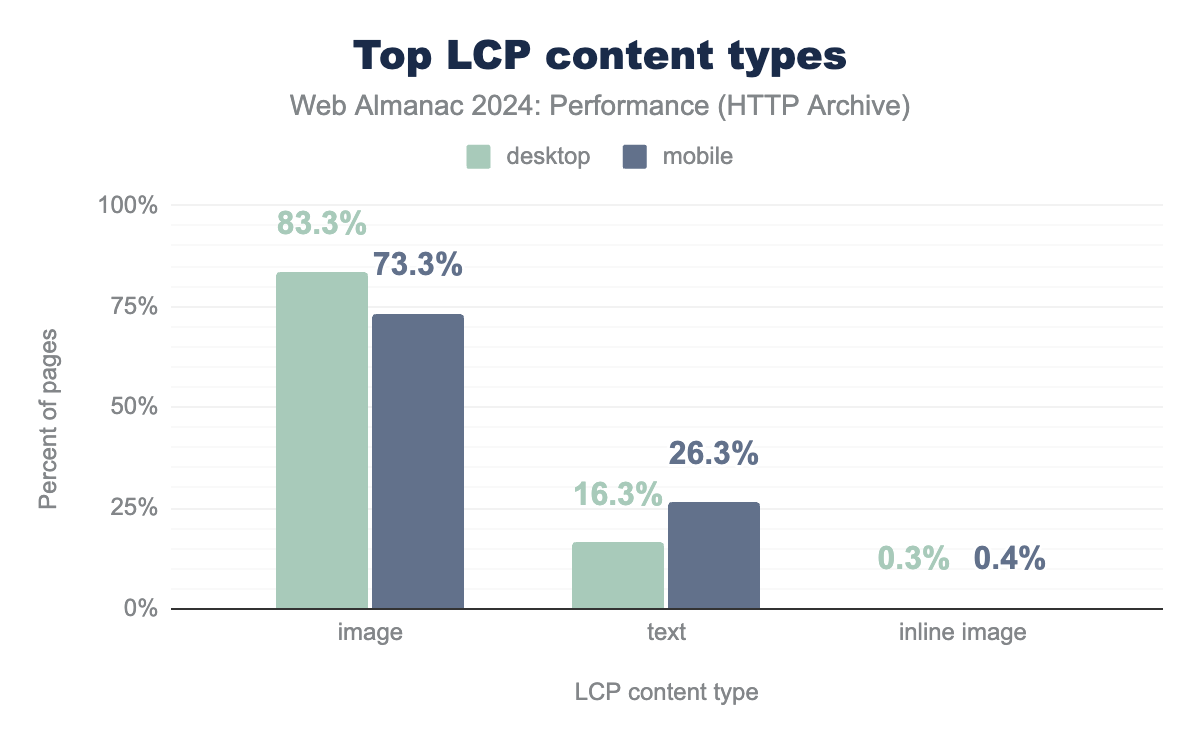
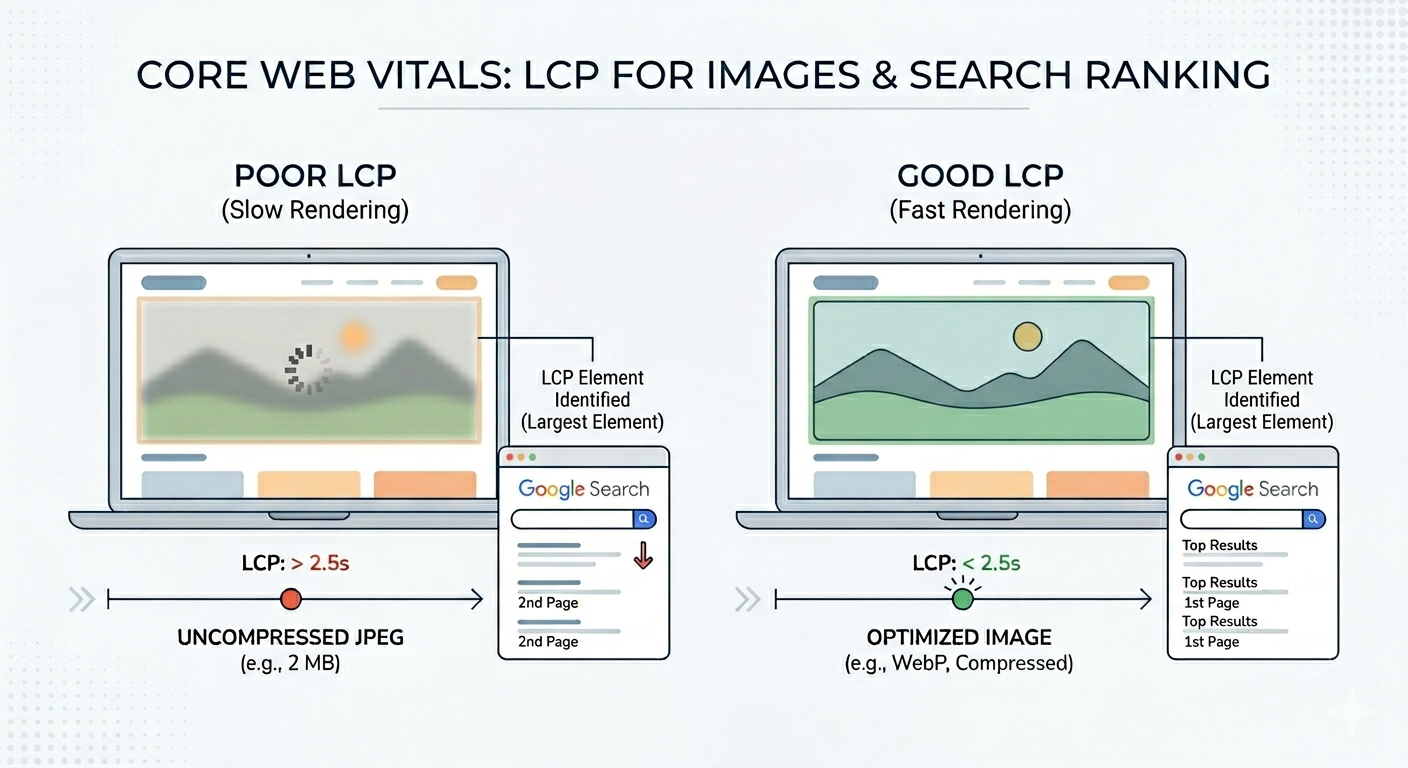
Google's Core Web Vitals are a set of performance metrics used as a search-ranking signal. For images, the Largest Contentful Paint (LCP) is the one to watch - it measures how long the largest visible element in the viewport takes to render, and on most pages that element is an image (hero banner, featured product photo, or background graphic). Google's "good" threshold is 2.5 seconds. A 2 MB uncompressed hero JPEG makes that threshold very hard to hit.
This requirement has practical consequences. Sites have been known to drop from the first page of Google results after a redesign that introduced heavier images. The site looks better, but the rankings get worse - higher-resolution photos mean slower LCP, which pushes Core Web Vitals scores below Google's thresholds.
The 4000px photo in a 400px container
Uploading high-resolution photos directly to the web is a major performance error. When a 4000 pixel image is placed in a 400 pixel container, the browser downloads the full file before shrinking it for display. This forces visitors to download 10 times more data than required.
The Impact of Optimization
| Image Width | File Size | Reduction |
|---|---|---|
| 4000px (Original) | 1.5 MB | 0% |
| 800px (Optimized) | 120 KB | 92% |
Using an 800 pixel width accommodates high-resolution retina screens while discarding pixels that cannot be seen. Without these adjustments, a page with 15 large images can exceed 18 MB, significantly slowing down the user experience.
The Cost of Ignoring Optimization
Slow images don't just annoy potential consumers. They cost you money in measurable ways.
- Bounce rates go up. Google's data shows that as page load time goes from 1 second to 3 seconds, bounce probability increases by 32%. From 1 to 5 seconds, it increases by 90%. This means each extra second of load time caused by heavy images can cost you visitors.
- Mobile users get hit hardest. Over half of global web traffic is on mobile devices, and many rely on metered data plans. Serving a 5 MB page to someone paying by the megabyte costs them real money, which most are unwilling to spend.
- Server costs add up. Every unnecessary byte multiplies across every visitor. A site with 100,000 monthly visitors serving 2 MB of excess images per page wastes roughly 200 GB of bandwidth every month. That's not just a performance issue; it's a financial one, especially at scale.
- SEO suffers. Google uses Core Web Vitals as a ranking signal. Poor LCP scores push you down in search results. Meanwhile, competitors who use compression gain a definitive advantage.
Fixing It: By Order of Impact
1. Right-size before you compress
Before you compress, step one is making sure the image dimensions match what you actually need. If your layout never displays an image wider than 800px, there's no reason to serve a 3000px file. Resize first, then compress. For retina displays, serve images at 2x the display size. If the container is 400px, your image should be 800px, not the default size produced by the camera.
2. Choose the right format
Format selection has a bigger impact than most developers expect.
- WebP. Offers 25-35% smaller file sizes than JPEG at equivalent quality and supports transparency. Browser support is now universal; switching from JPEG to WebP is essentially free performance.
- AVIF. Reduces file sizes by 30-50% compared to JPEG. While encoding is slower and browser support is still growing, it is a top-tier choice for progressive enhancement.
- PNG. Reserve this for images requiring lossless quality or transparency where WebP isn't an option. Using PNG for photographs is almost never the right call.
- SVG. Perfect for icons, logos, and simple illustrations. It scales infinitely without quality loss and maintains a tiny file size.
The best approach is to serve multiple formats using the <picture> element, allowing the browser to select the most efficient supported version.
3. Lazy load - but not everything
Lazy loading defers downloading images until they're about to scroll into view. Adding loading="lazy" to below-the-fold image tags is a significant win for image-heavy pages.
☞ Rule of Thumb: Everything below the fold? Lazy load it. Everything above the fold? Load it eagerly with high priority. The difference in initial page load time is significant.
The diminishing returns curve
While optimizing images can yield significant improvements, there's a point where the gains become marginal; going from 3 MB of images to 300 KB is transformative. Going from 300 KB to 250 isn't noticeable by users or search engines.
Keep these in mind as you spend time optimizing your site(s):
- Right-sizing generally offers a 60-80% reduction. This step should always be first priority
- Format conversion (JPEG to WebP/AVIF) gets you another 25-40%, and should be part of any content strategy involving image assets.
- Compression tuning operations like adjusting quality levels from 85 to 75 can gain 10-20% more. Generally worth doing at high volumes, but this is where returns start to diminish.
- Obsessing over the last 5% is usually not worth the effort unless you're operating at enormous scale where bandwidth costs are a real budget line.
If your total image payload per page is under 500 KB and your LCP is under 2.5 seconds, you're in solid shape to move on more impactful performance improvements.
Resize, Convert, Lazy-Load, Keep Originals
Images are usually the single heaviest resource on a page, and they're the easiest to fix. Resize to the actual display dimensions, convert to WebP or AVIF where supported, lazy-load anything below the fold, and keep the high-resolution originals for future re-exports. A day of focused work is often enough to cut page load times in half.